Your cart is currently empty!
Libertytrader EA Installation
🌐 Installation guide in your language
Choose your language:
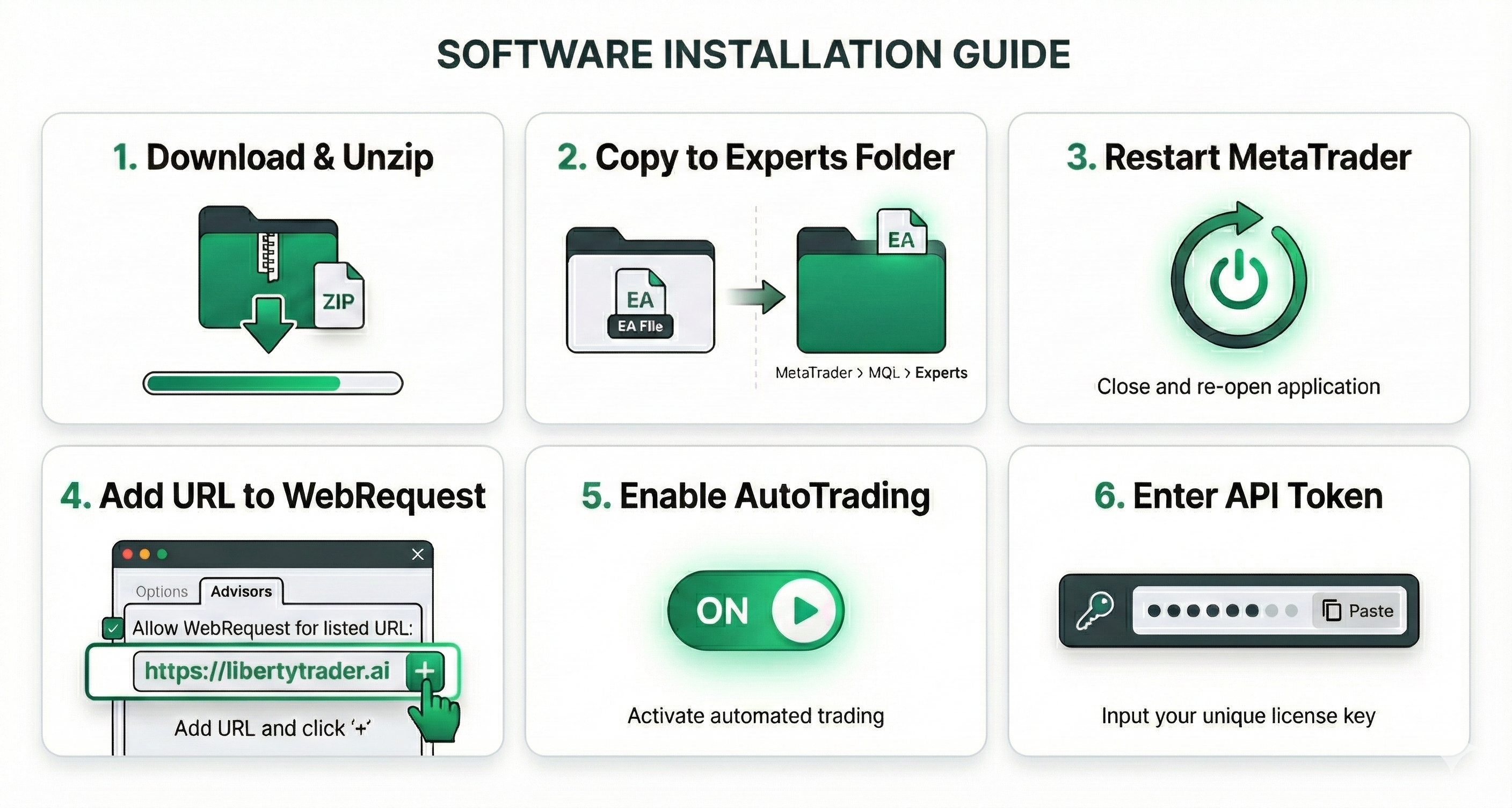
Installation Guide: LibertyCopier EA (MT4 & MT5)
The LibertyCopier EA is your tool for fully automated trading. It connects your trading account directly to our servers and executes signals in real-time – with precise risk management and automated trade management (Trailing Stops, Breakeven).
Follow this guide to activate the system in just a few minutes.
Step 1: Download the Software
-
Log in to your LibertyTrader.ai Dashboard.
-
In the “Downloads” section, you will find the current version of the EA.
-
For MetaTrader 4: Download the file
LibertyCopier_Pro.ex4. -
For MetaTrader 5: Download the file
LibertyCopier_Pro.ex5.
-
-
Note: If the file is packaged as a
.zip, please unzip/extract it first.
Step 2: Installation in MetaTrader
For the platform to recognize the EA, the file must be moved to the internal “Experts” folder.
-
Start your MetaTrader.
-
In the top-left menu, click on File → Open Data Folder.
-
Navigate through the folders:
-
MT4: Open
MQL4→Experts. -
MT5: Open
MQL5→Experts.
-
-
Copy your downloaded
.ex4or.ex5file into this folder. -
Important: Restart MetaTrader (or right-click on “Expert Advisors” in the Navigator window and select “Refresh”) so that the EA appears.
Step 3: Allow Server Connection (WebRequest)
This is the most important step. For the EA to receive signals, you must approve our API URL in the security settings.
-
In MetaTrader, go to Tools → Options (Shortcut
Ctrl+O). -
Switch to the Expert Advisors tab.
-
Check the following boxes:
-
✅ Allow automated trading
-
✅ Allow WebRequest for listed URL
-
-
Click the green plus symbol (
+) and insert exactly this URL:https://libertytrader.ai -
Confirm with OK.
Step 4: Load EA onto the Chart
-
Open the Navigator window (usually bottom left, or
Ctrl+N). -
Look for
LibertyCopier_Prounder “Expert Advisors” (or “Experts”). -
Drag and drop the EA onto any chart (e.g., EURUSD).
-
Note: It is sufficient to let the EA run on ONE chart. It automatically manages all symbols from there.
-
-
The settings window will open. Switch to the Inputs tab.
-
Insert your personal license key into the
API_Tokenfield (you can find this in your dashboard). -
Click OK.
Step 5: Activation
The EA is now loaded. To start trading:
-
Click the AutoTrading (MT4) or Algo Trading (MT5) button in the toolbar at the top.
-
The button must turn GREEN.
-
Check: In the top right corner of the chart, you should see a smiling face 🙂 in MT4 (in MT5, the icon will turn green/blue).
FAQ & Troubleshooting
The EA is not trading and the Journal says “Error 4060”? This error means “Permission Denied”. You skipped Step 3 or typed the URL incorrectly. Please add https://libertytrader.ai under Tools -> Options -> Expert Advisors -> WebRequest.
I use a Prop Firm. Is the EA safe? Yes. The EA features an integrated Stealth Mode. In the EA settings (Inputs), you can minimally vary the entry under Offset Pips (e.g., +1 Pip). This makes your trades different from other users, protecting you from “Copy Trading Flags” by prop firms.
I switched trading accounts (e.g., new Challenge). What now? Our system automatically binds your license to the first account number used. To switch:
-
Go to your Web Dashboard.
-
Delete the old number from the “MT4 Account Number” field.
-
Enter the new number and save.
-
Restart the EA in MetaTrader.
Does my PC always have to be running? Yes, MetaTrader must be active to receive signals and execute trade orders. We recommend using a VPS (Virtual Private Server). This ensures the EA runs stably 24/7 in the cloud, even if you turn off your PC.
In